THE PULSION GUIDE
Turn your music into a video
You do not need filmed footage to share a song as a video. A background image, a readable title and an audio-reactive spectrum give your track a visual identity for YouTube or social media.
1. Prepare the audio and the cover image
Use a track you are allowed to publish and a sufficiently sharp cover image. Keep the original audio file. MP3 and AAC can retain their original audio stream for supported full-track exports; trimmed tracks and other formats may require conversion.
2. Build the scene from a template
Open a template, import the track in Audio, and choose a background image. Use Quick settings to adjust image fit, spectrum colours and the logo. Keep the design readable when viewed on a small screen, and leave space around important text.
3. Preview the beginning, a strong passage and the ending
Play these three passages before exporting. Check that the visualizer is visible, the sound plays and the effects are not distracting. A quiet introduction can call for different sensitivity from a loud chorus.
4. Download an MP4 for your release
Choose the video format and export. Your browser creates the video locally. Save the MP4 on your computer, then upload it yourself to your chosen platform. Pulsion does not host your finished videos. Saved project settings do not currently provide cloud storage for your personal images.
Example: cover art, a title and your track
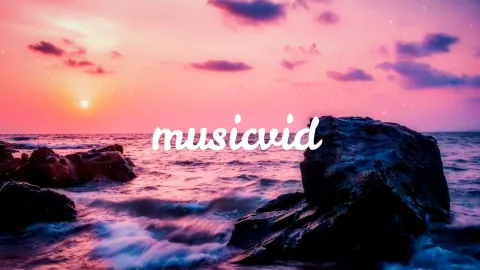
For a music release, start with Signature. Import the track, replace the template images and give the artist name and title a clear place. If the cover already contains lettering, avoid covering it with the spectrum or repeating the same information.
- Choose the destination format first. Square cover art can stay fully visible in a 16:9 composition, with a suitable backdrop around it.
- Compare the image fit options. Filling the frame can crop the cover; showing the entire image preserves its edges. Check faces, logos and lettering.
- Play a strong passage to check the movement, then export. Open the downloaded MP4 and check the sound, beginning and ending before publishing it.
Choose a composition for your music video
| Your content | Template to try | What to watch |
|---|---|---|
| An image-led identity | Signature | Contrast between the cover, logo and backdrop. |
| Animated edges around an image | Wavy | The background subject after cropping. |
| A wave accompanying the track | Audio Wave | Title readability above the moving shape. |
Keep a usable project and final file
The project asks for the file again
A project saves settings, not your personal audio file. Keep your track and import it again when reopening. Personal images are not stored in the cloud.
Export does not start
Check that you are signed in, a track is loaded and an export is available. Keep the editor open while rendering and read any message before retrying.
The file downloads but is not published
Downloading creates a file on your device. Open it to verify it, then upload it yourself to your chosen platform.
Frequently asked questions
Is my MP3 automatically uploaded as a finished video?
No. Pulsion creates a downloadable file. You choose where to publish it.
Which format should I choose for YouTube?
16:9 is suitable for a standard landscape video. Choose 9:16 for a vertical composition such as YouTube Shorts.