THE PULSION GUIDE
Create an audio visualizer online
An audio visualizer turns the energy of a song into animated shapes. A circular spectrum, moving bars or particles can help you publish a track as a video while keeping the music at the centre.
1. Choose a shape that suits your music
Start with a template such as Circle Spectrum, Audio Wave or Monstercat Bar Visualizer. Preview several designs before opening one. Circular spectra frame a logo well; bars leave more room for cover art. You can also start with an empty project and add your own layers.
2. Import the track and adjust the response
Open Audio and choose your music file. Quick settings brings together the background, spectrum and logo controls available in the project. Adjust sensitivity and smoothing while listening to a strong passage and a quiet passage. An attractive still image is not enough: check that the movement follows the music.
3. Check the composition in the final format
Choose YouTube (16:9), TikTok (9:16) or Square (1:1) above the preview. Keep the logo, text and largest spectrum peaks within the frame. If you use a background image, compare filling the frame with showing the entire image.
4. Export and keep a copy
Sign in, open Export and choose your settings. Pulsion renders on your device; keep the editor open until the file downloads. Free includes one successful watermarked export per UTC day. Monthly plans provide additional exports. Keep a copy of the final MP4 and the original audio.
Example: a circular spectrum around your logo
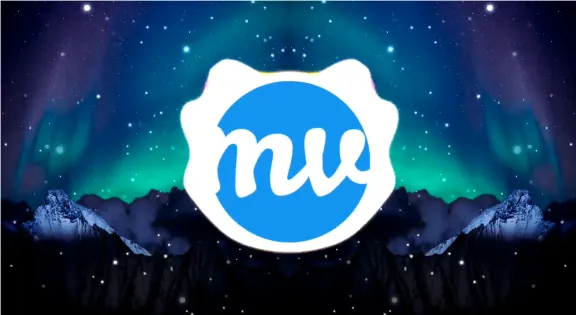
For a first composition, open Circle Spectrum and import your track in Audio. Replace the central image with your logo. Choose a backdrop that contrasts with the outline: a dark logo over a dark image can remain hard to read even with more glow.
- Play a strong passage. Size the circle so its largest peaks remain inside the frame.
- Then play the introduction or a quiet passage. Adjust sensitivity and smoothing so the movement stays visible without becoming a constant vibration.
- Keep the title outside the circle and check it at a small screen size. Preview the beginning, chorus and ending before rendering.
Which spectrum style should you choose?
| Your priority | Template to try | What to check |
|---|---|---|
| A central logo | Circle Spectrum | Logo size and space around the largest peaks. |
| Cover art with a restrained response | Audio Wave | Wave contrast and space for the title. |
| Moving bars | Monstercat Bar Visualizer | Bar height during the strongest passage. |
When the preview does not look right
The spectrum does not move
Check that Audio has a loaded track and that playback advances. A passage with little energy may leave a spectrum almost still: compare it with a chorus before changing the controls.
The logo or title is cropped
Return to your final format, reduce the affected element and check a strong passage. A composition that works in 16:9 may need reframing in 9:16.
Movement is too nervous
Reduce sensitivity or increase smoothing if these controls are available. Check the quieter passage as well so the response remains useful.
Frequently asked questions
Do I need to install software?
No. The editor runs in a compatible web browser. Rendering speed depends on your device, browser, resolution and visual effects.
Can I create an audio visualizer for free?
Yes. Pulsion Free includes one successful export per UTC day, with a Pulsion watermark. An account is required to export.